 Yorimichi Games
Serving Robot: how to play, rules and tips
Serving Robot is a step-by-step command puzzle. A small robot waiter works in a shop full of tables, and your job is to tell it exactly what to do. You don’t steer the robot directly. Instead you build a short program from command blocks such as Forward, Turn right and Serve, press Play, and watch the robot carry the plan out one block at a time. If every customer receives the plates they ordered and the robot finishes with empty hands, the stage is cleared.
There are 28 stages in 5 chapters. The first stages need only a few blocks, and each chapter adds one new idea: repeating a group of commands, choosing with “If”, looping with “While”, and remembering a number with the memo. Everything runs in your browser, there is nothing to install, and your progress is saved automatically on your device.
How to play Serving Robot
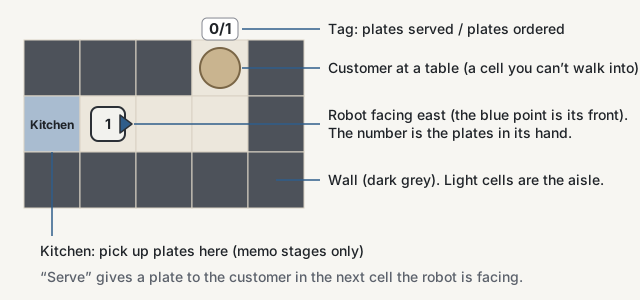
- Read the goal. Under the stage name you see a one-line request, such as “The seat just ahead has ordered 1 plate.” Above the board you see how many plates the robot is holding and which way it faces.
- Add commands. Press the command buttons under the board. Each press adds one block to your program, at the end or after the block you selected.
- Press Play. The robot runs your blocks from top to bottom. The block being run is highlighted, so you can follow along. “Step” runs one block at a time, and “Step back” rewinds one block.
- Read the result. On success you see “Stage cleared” in the result area and a “Cleared” badge just above the board. On failure you see a short reason. If a block caused it, for example a Forward that bumps into a wall, that block turns red. If the program simply ended too early, with someone still waiting or plates left in hand, no block turns red: the result tells you what was missing.
- Fix and try again. Your program is kept after a failure. Fix the red block if there is one; otherwise add the missing blocks or rethink the route, then press Play again. “Restart” puts the robot back at the start without touching your program.
Serving Robot rules
A stage is cleared when all of the following are true at the moment the program ends:
- Every customer has received exactly the number of plates they ordered.
- The robot holds no plates.
- The program ran to the end without an error.
Serving everyone halfway through is not enough: the robot always runs the rest of the program, and a later block can still cause a failure. These situations stop the run with a failure:
| What happened | Why it fails |
|---|---|
| Bumped into a wall, a table or the kitchen | Forward only works when the next cell is aisle |
| Served with no customer in front | Serve hands a plate to the next cell the robot faces |
| Served with no plates in hand | The robot can only give what it carries |
| Served more than was ordered | Customers want exactly their order |
| Ended with someone still waiting | Every order must be complete |
| Ended with plates still in hand | The robot must finish empty-handed |
| A loop ran 300 steps | The program probably never ends |
Examples. From chapter 3 on, many stages show two or three examples above the board, for instance “Seat above” and “Seat below”. The layout or the orders change between examples, but you write one program for all of them. A stage counts as cleared only when the same program succeeds on every example. “Check all examples” runs them all at once and lists the result for each.
All commands
| Command | What it does |
|---|---|
| Forward | Moves one cell in the direction the robot faces. |
| Turn right / Turn left | Turns 90 degrees on the spot, from the robot’s point of view. |
| Serve | Gives one plate to the customer in the next cell ahead. |
| Repeat (number) times | Runs the blocks inside the frame a set number of times, 1 to 9. |
| If … then / Else | Checks a condition once and runs one of its two sides. |
| Repeat while … | Runs the blocks inside again and again while a condition holds. |
| Note order | Writes the order of the customer in front on the memo. |
| Add to memo | Adds the order of the customer in front to the memo. |
| Pick up | Takes as many plates as the memo says from the kitchen in front. |
| Repeat memo times | Runs the blocks inside as many times as the memo says. |
Right and left belong to the robot. The most common mistake is to turn the way that looks right on the screen. If the robot faces south (down the screen), “Turn right” makes it face west, which is to the left of the screen. When in doubt, look at the “Facing” arrow above the board, or press Step and watch the turn.
Conditions
“If” and “While” ask a yes-or-no question about the cell next to the robot. You pick the question from a menu inside the block. Each stage offers only the conditions it needs.
| Condition | It is true when… |
|---|---|
| path ahead / on right / on left | the next cell in that direction is aisle the robot could walk onto |
| waiting customer ahead / on right / on left | a customer whose order is not yet complete sits in the next cell in that direction |
A customer who has received everything no longer counts as waiting, even though they are still sitting there. So “waiting customer ahead” turns false as soon as the last plate is served. That detail makes it a handy test for “does this table still need a plate?”, and “Repeat while waiting customer ahead [Serve]” serves exactly the ordered number of plates.
Loops: Repeat and While
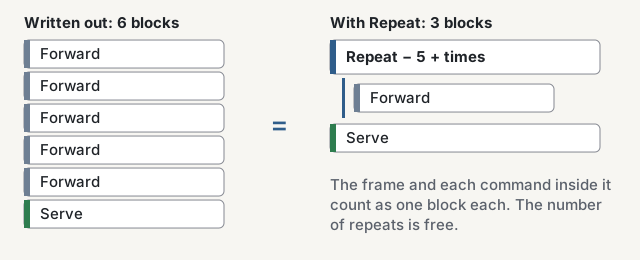
Repeat is the first loop you meet, in chapter 2. Put one or more blocks inside the frame and set the count with − and +. The frame and each block inside count toward the block limit, but the count itself is free. So “Repeat 5 times [Forward]” is only 2 blocks, where writing Forward five times would be 5. The real power shows when you repeat a group: “Forward, Forward, Turn right, Serve, Turn left” repeated 3 times serves three tables in a row with just 6 blocks.
You can place a frame inside another frame (two levels deep), for example a Repeat inside a Repeat. Stage 11 is built around that idea.
While arrives in chapter 4. Instead of a fixed count, it checks its condition before every round. When the condition is true it runs the inside and checks again. When it is false it moves on to the next block. If the condition is false the very first time, the inside is skipped completely. This is what you need when the aisle is 3 cells long on one day and 5 on another: “Repeat while path ahead [Forward]” always stops just in front of the far end.
Every action, condition check and loop check uses one step. If the condition of a While never changes, for example a While with nothing inside, the robot stops after 300 steps and the frame is marked so you can fix it.
Choosing with If
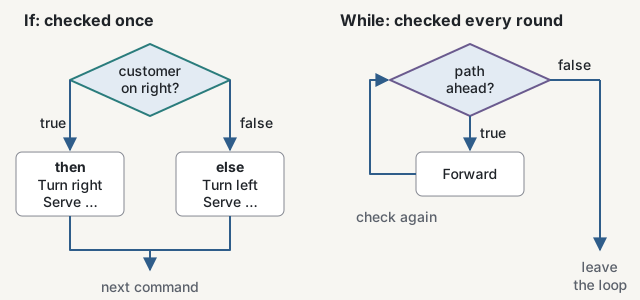
If appears in chapter 3, where the examples start to differ. The block has two sides: the “then” side runs when the condition is true, the “Else” side when it is false. Either side may be empty. A typical use: “If waiting customer on right then [Turn right, Serve, Turn left] Else [Turn left, Serve, Turn right]” serves whichever side the customer sits on and turns back to face along the aisle.
If checks its condition only once, when the robot reaches it. Put an If inside a Repeat or a While when you need to make the same choice at every table along an aisle.
The memo and the kitchen
In chapter 5 the robot starts with no plates. It has to find out how many plates are needed, fetch them from the kitchen, and then serve. The memo is a single number shown above the board.
- Note order reads the order of the customer the robot faces and writes it on the memo.
- Add to memo adds that customer’s order to the number already there, so you can total two tables.
- Pick up must be used while facing the kitchen. It takes as many plates as the memo says. You may use the kitchen only once per run, and not while the memo is 0.
- Repeat memo times runs its inside as many times as the memo says. The count is fixed when the frame starts, so “Repeat memo times [Serve]” serves exactly the ordered number of plates.
Because the kitchen can be used only once, a stage with two tables needs you to add both orders before you go to the kitchen. Remember to read an order again before serving if the memo now holds a total.
The block limit
Every stage limits how many blocks your program may use. The count is shown above your program, for example “Program 6/8 blocks”. A frame counts as one block and every block inside it counts as one more. The “Else” divider, repeat counts and conditions are not counted. Several stages are designed so that writing everything out would go over the limit: that is your hint to look for a pattern you can repeat.
Chapters at a glance
| Chapter | Stages | New idea |
|---|---|---|
| 1 Basics | 1–6 | Forward, turning and serving |
| 2 Repeat | 7–12 | Repeating a group a set number of times |
| 3 If | 13–18 | Choosing between two sides |
| 4 While | 19–23 | Looping until a condition changes |
| 5 Memo | 24–28 | Reading orders, the kitchen and totals |
Serving Robot strategy and tips
- Walk it in your head first. Before adding blocks, trace the route with your finger: how many cells, where it turns, which side the customer sits on.
- Use Step generously. Running one block at a time shows exactly where the plan goes wrong, and the current block is highlighted in the program.
- Find the repeating unit. When tables are evenly spaced, write the moves for one table, including turning back to face along the aisle, then wrap them in Repeat.
- Turn back after serving. Most loop bugs come from serving and forgetting to face the aisle again, so the next round walks into a wall.
- Test every example. A program that clears one example may fail another. “Check all examples” finds out in one press.
- Prefer conditions over counts when lengths change. If the number of cells differs between examples, a While is usually the answer.
- Edit instead of starting over. Tap a block to move it up or down, move it into or out of a frame with “Move”, swap it with “Change to”, copy or delete it. Use Undo (Ctrl+Z) and Redo (Ctrl+Y) freely.
Serving Robot FAQ
Do I need an account or a download?
No. The game runs in your browser. Your programs and cleared stages are saved automatically in this browser on this device.
Why is no block red after a failure?
Only a failure caused by a block, such as bumping into a wall or serving with empty hands, marks that block in red. When the program ends with a customer still waiting or plates left in hand, nothing went wrong in a single block; the program was just not finished. Read the result, which tells you who is still waiting or how many plates are left, and add the missing blocks or change the route.
Why did the robot fail even though everyone got their plates?
Check whether the robot still holds plates at the end, or whether a later block caused an error. The program must finish without errors and with empty hands.
What is the difference between Step back, Restart and Undo?
Step back and Restart move the robot only: one block back, or all the way to the start. Undo changes your program, taking back your last edit. Your program is never deleted by a failed run.
Can I change a block after adding it?
Yes. Tap it in the program to see its actions. Repeat counts are changed with − and +, and conditions with the menu inside the block.
Is there a hint if I get stuck?
Under “More” you can insert a sample answer. It is one possible solution; shorter ones may exist. Your previous program can be restored with Undo.
Does it work on phones?
Yes. On a phone the board, command buttons, program and Play button sit one above another, and all controls can be tapped. A keyboard works too: Tab moves between controls, Enter presses them and Esc closes panels.
Why does a stage show several examples?
Examples teach you to write general programs. When the seats or the aisle length change between examples, a program that only memorises one layout will fail, while one that uses conditions and loops will clear them all.
Comments
Write a comment
No comments yet.