 Yorimichi Games
How to play the online piano
This is a free piano you can play right in your browser. There are three ways to use it. Free play turns the screen into a keyboard so you can play anything you like. Follow the notes drops colored notes onto the keys so you can play a melody without reading sheet music. Ear training plays a single note and asks you to find it on the keyboard. Pick a mode under Settings and press Start. On a phone or tablet you tap the keys with your fingers; on a computer you can click them or play with your computer keyboard. Nothing to install and no sign-up.
The page never makes a sound on its own. Sound switches on only when you press Start, and you can change the volume at any time with the Volume button under the keyboard (high, medium, low or off).
Free play: a virtual piano keyboard
Press a key and you hear that pitch with a soft, piano-like tone. Press several keys together to play a chord, or keep your finger (or mouse button) down and slide sideways to run up and down the keyboard. Every note you play floats up the screen as a colored bubble with its name inside, so you can see exactly what you played.
You can choose a one-octave keyboard with large keys or a two-octave keyboard. On a phone the one-octave keyboard is much easier to hit, and the Lower and Higher buttons shift it up or down an octave at a time. The keys can show note names as C D E or as Do Re Mi, and once you know them you can hide the names and test yourself.
Follow the falling notes
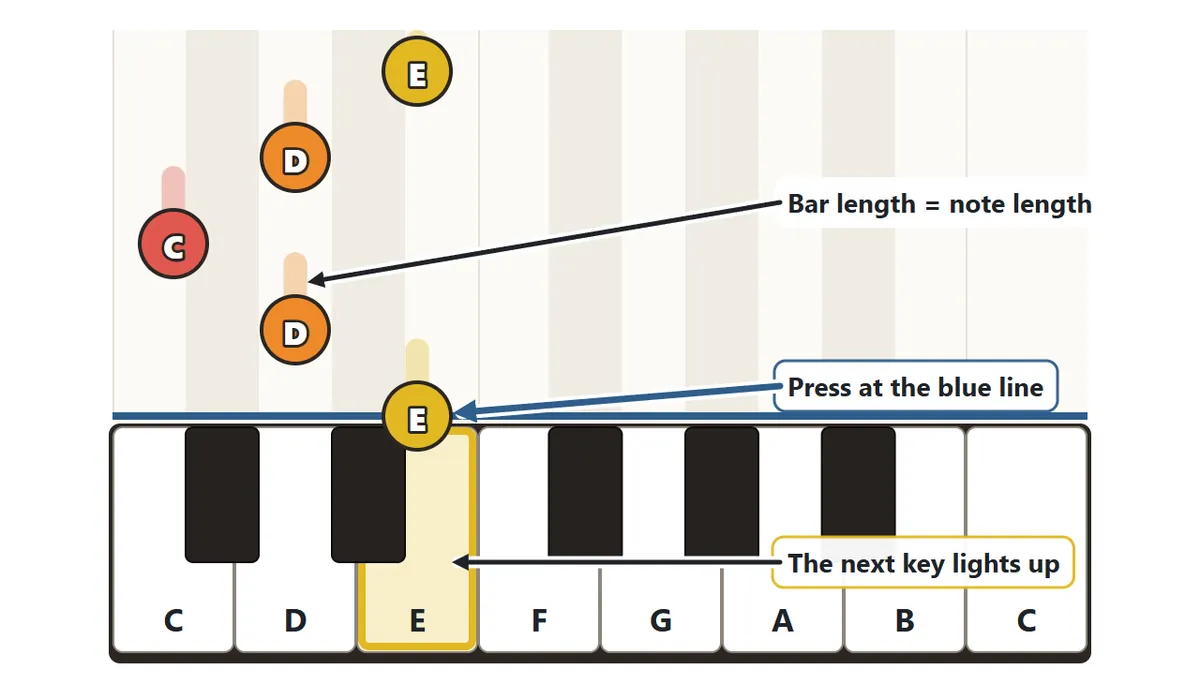
Choose a song and press Start. After a one-bar count-in (you will hear the clicks and see the numbers), round notes start falling from the top. Each note travels down the column directly above the key you need to press, and its name is written inside it. When the center of a note reaches the blue line just above the keyboard, press that key. The thin bar trailing above a note shows how long the note lasts, so a long bar means there is more time before the next one. The key you need next lights up with a colored frame, which makes it easy to follow along even if you have never played before.
Each note name has its own color: C is red, D orange, E yellow, F green, G light blue, A blue and B purple. Notes on black keys (sharps) have a dotted ring inside the circle.
Timing, scores and ranks
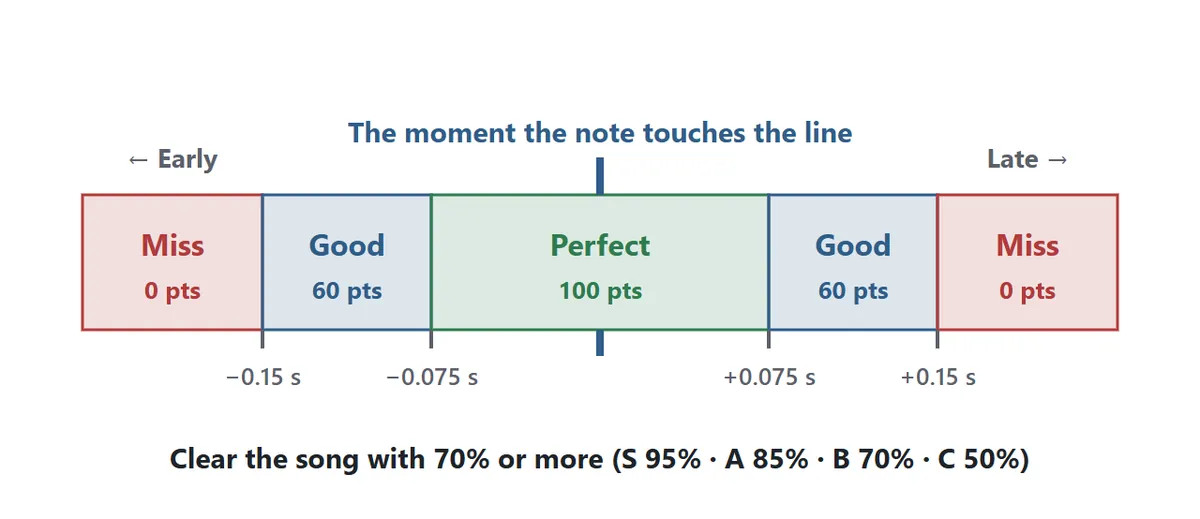
If you press within 0.075 seconds of the moment a note touches the line, you get a Perfect. Within 0.15 seconds is a Good, and a small “early” or “late” tells you which way you were off. Press later than that, or let the note pass, and it counts as a Miss. Hits in a row build up your combo.
At the end of the song your accuracy is worked out with Perfect worth 100 points and Good worth 60, compared with a perfect run. You clear the song with 70% or more, and you get a rank: S for 95% and up, A for 85%, B for 70% and C for 50%. Pressing a different key while a note is close to the line counts as a wrong note and breaks your combo, but when no note is nearby you can play whatever you like.
Three ways to learn a song
- Flowing: the notes keep moving, just like a rhythm game. This is where you play in time.
- Wait for me: each note stops at the blue line and waits until you press the right key. Timing doesn’t matter, so you can concentrate on learning the order of the notes.
- Hear the demo: the song plays itself and each key lights up as it sounds, so you can watch and listen before you try.
A good way to learn a new melody is to hear the demo first, then play it with “Wait for me” until you know the order of the notes, and finally play it “Flowing” along with the beat.
Ear training: which note was it?

In ear training the game plays one note and you answer by pressing the key you think it was. There are ten questions. Easy uses only C, D, E, F and G, Normal uses the eight white keys from C up to the next C, and Hard adds the black keys for thirteen possible notes. Only the keys that can be the answer are bright. With “Play C first” switched on you always hear middle C before the question, so you can judge how far above C the mystery note is. Press “Listen again” (or the space bar) as often as you like.
Playing with your computer keyboard
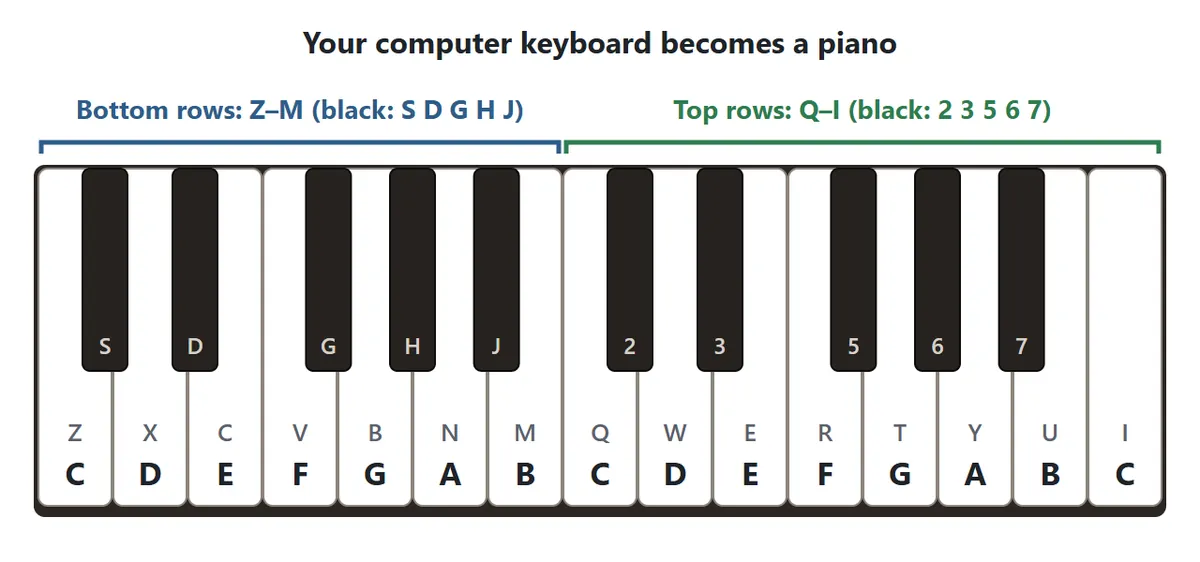
On a computer, your keyboard becomes a piano. On the bottom row, Z X C V B N M are the white keys from C to B, and S D G H J on the row above are the black keys. On the top letter row, Q W E R T Y U I play the next octave from C to C, with the number keys 2 3 5 6 7 as its black keys. The pattern of white and black is the same as on a real piano, and each on-screen key shows its letter in small print.
Song list
The songs are listed from easiest to hardest. All of them are old enough to be in the public domain, and every melody was entered note by note from a score.
| Level | Songs |
|---|---|
| Easy | Mary Had a Little Lamb, Twinkle, Twinkle, Little Star, Ode to Joy (Beethoven), Haru no Ogawa (The Spring Brook), Chatsumi (Tea Picking), Auld Lang Syne, Rousseau’s Dream |
| Normal | Largo from the New World Symphony (Dvořák), Furusato (My Old Home), Nanatsu no Ko (Seven Little Ones), Amazing Grace, Haru ga Kita (Spring Has Come), London Bridge Is Falling Down, Kutsu ga Naru (Shoes Are Squeaking), Lightly Row |
| Hard | Song for the Close of School, Silent Night, Minuet in G, Comin’ Thro’ the Rye, Für Elise (Beethoven), Turkish March (Mozart) |
Easy songs use only white keys and mostly quarter notes. Normal songs add eighth notes, dotted rhythms and bigger jumps. Hard songs use black keys and fast, detailed rhythms. Several of the songs are Japanese children’s songs from the early 1900s that are still sung in Japanese schools, alongside familiar tunes from Europe and America.
Choosing a speed
| Speed | Tempo | Good for |
|---|---|---|
| Slow | 60% of normal | first-timers and new songs |
| Normal | a usual performing tempo | players who know the notes |
| Fast | 135% of normal | a real challenge |
Start with an Easy song at Slow speed. When you clear it, raise the speed or move on to a harder song. Switch the metronome on to hear a quiet click on every beat, which makes it much easier to keep time.
Bluetooth headphones and some speakers play sound a fraction of a second late. If the timing feels wrong, pick a “later” value under Timing offset in the settings. After a song in Flowing mode, the results show whether you tend to press early or late on average, and if the difference is large, a single button sets the offset for you.
Piano game tips
1. Look a little above the line
If you only watch the blue line, you will notice the next note too late. Keep your eyes slightly higher, where you can see the next two or three notes coming, and your hand will be ready in time.
2. Read the rhythm from the gaps
A wide gap between notes means a long note; a narrow gap means a short one. The bar above each note tells you the same thing. Turn the metronome on and nod or tap your foot with the clicks, and your Perfects will go up.
3. Give each finger a key
The basic piano hand position puts your thumb on C, index finger on D, middle finger on E, ring finger on F and little finger on G. Most of the Easy songs can be played without moving your hand from there. On a phone or tablet, rest several fingers over the keys instead of using just one, and you will keep up even in quick passages.
4. Fix the hard spots with “Wait for me”
If you keep missing the same place, play the song in Wait for me mode and learn the order of the notes there. Once the order is in your head, Flowing mode is only about rhythm.
5. Press as the note touches the line
If you tend to press before the note arrives, wait until the center of the circle sits on the line. The “Your timing” line in the results tells you whether you are early or late on average.
Learning the note names: C D E and Do Re Mi
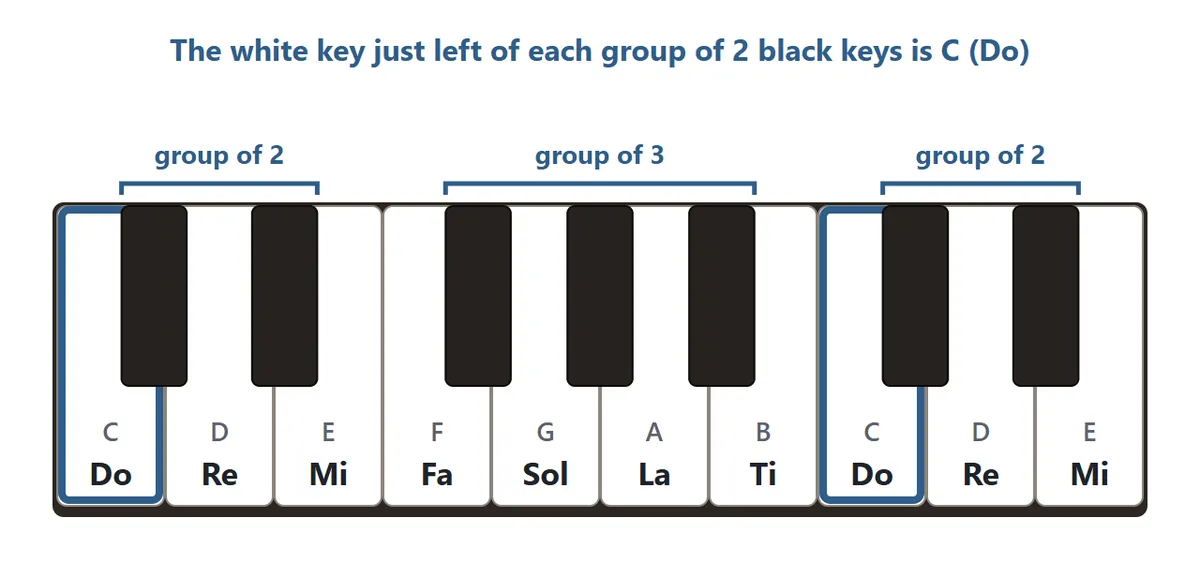
The notes of the white keys have letter names, C D E F G A B, and solfège names, Do Re Mi Fa Sol La Ti. C is Do, D is Re, E is Mi, F is Fa, G is Sol, A is La and B is Ti. The alphabet starts at A, but the scale most people learn first starts on C, which is why C is the key to look for. In this game you can show either set of names, or hide them once you know them.
To find C on any piano, look at the black keys. They come in groups of two and groups of three, over and over. The white key just to the left of a group of two is always C, and the white key just to the left of a group of three is always F. From C you can count the white keys to the right: D, E, F, G, A, B, and then C again one octave higher.
A black key is a half step higher than the white key on its left, so it is called a sharp: C♯, D♯ and so on. It is also a half step lower than the white key on its right, so the same key can be called a flat: C♯ and D♭ are the same key.
Using it for music lessons and practice
The large keys, visible note names, slow speed and the Wait for me mode make the game useful for practice as well as play.
- Learn a melody before a lesson: hear the demo, then step through the notes with Wait for me.
- Learn the keyboard: in Free play with names shown, play C D E F G A B C; then hide the names and ask someone to call out notes for you to find.
- Train your ear: start with Easy and “Play C first” on. When you get eight or more right, switch off the C, or move up to Normal.
- On a big screen: on a projector or large display, a whole group can read the colored notes together.
It runs in the browser on Chromebooks, iPads, phones and computers without installing anything. If several people are using it in one room, start with the volume on low.
FAQ
I can’t hear anything
There is no sound until you press Start. If it is still silent, check your device volume and make sure the Volume button is not set to off. On an iPhone or iPad, the silent switch can mute web pages.
The sound is late or the timing feels off
Bluetooth headphones and speakers can delay sound by 0.1 to 0.2 seconds. Use the device speaker or wired headphones if you can, and otherwise change the Timing offset in the settings.
Can I stop and continue later?
Yes. In Flowing and Wait for me modes your progress is saved on this device, and Continue picks up a little before where you stopped. The game also pauses by itself if you switch to another tab.
Where are my scores saved?
Your best accuracy for each song, speed and mode, and your best ear-training score for each level, are kept in this browser on this device. There is no login.
How is this different from a real piano?
The sound is a piano-like tone made inside your browser. Every key plays at the same volume however you press it, and there is no pedal. The keys are not real piano width either, so this is better for learning note names, rhythms and melodies than for finger technique.
About falling-note piano games
Games where you press buttons in time with marks scrolling down the screen are usually called rhythm games, and they have been popular in arcades, on home consoles and on phones for decades. Showing falling notes above a piano keyboard also became a well-known way to learn songs without reading sheet music, especially in computer piano-practice programs. This game combines that idea with colored note names and a mode that waits for you, so that someone touching a piano keyboard for the first time can still play a whole melody.