 Yorimichi Games

How the reaction time test works
This page has five small tests that measure different sides of your reflexes. Reaction Time is the classic one: wait for the box to turn green, then press as fast as you can. Click Speed and Space Bar Speed count how many times you can press in 5, 10 or 30 seconds. Choice Reaction makes you pick the right button for each signal, and Spot the Light has you find and hit a square that lights up on a grid. Pick a test above, press Start, and you are measuring within seconds – no account, no download.
Your results stay in this browser, so you can come back later and see whether you beat your personal best or had a better day than yesterday. Every test is short, which makes it easy to run a few rounds and watch how your numbers move.
Reaction time test: press when the color changes
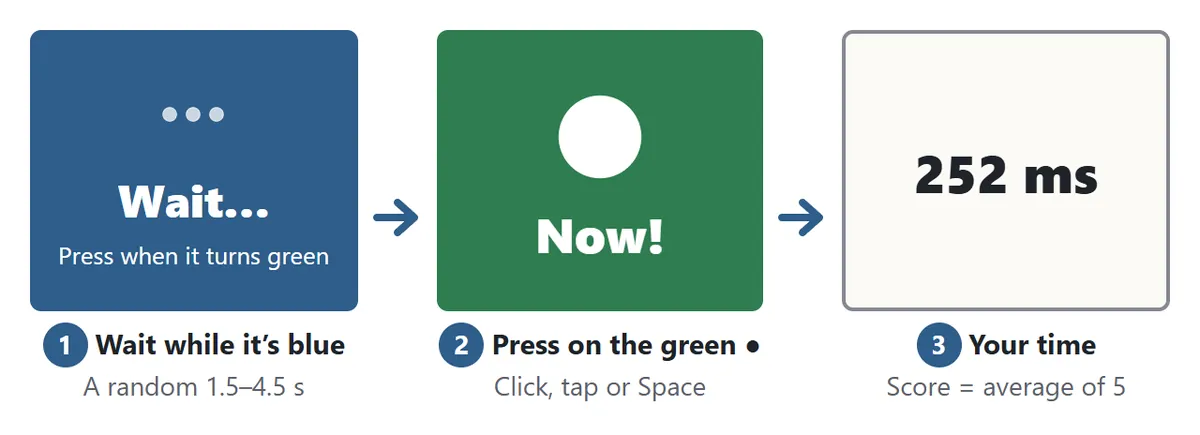
When you press Start, the big box turns blue and says “Wait…”. Somewhere between 1.5 and 4.5 seconds later it turns green and shows a white ● with “Now!”. Press right away: click the box, press the space bar or Enter on a keyboard, or tap the box on a phone or tablet. The time it took appears in milliseconds, for example “252 ms”. One millisecond is a thousandth of a second, so 252 ms is about a quarter of a second. You do this five times, and the average of the five is your result.
The wait before the signal changes every time on purpose. If you try to press on a rhythm (“it should be about now”), you will usually jump the gun, which brings us to the next rule.
Don’t press too early
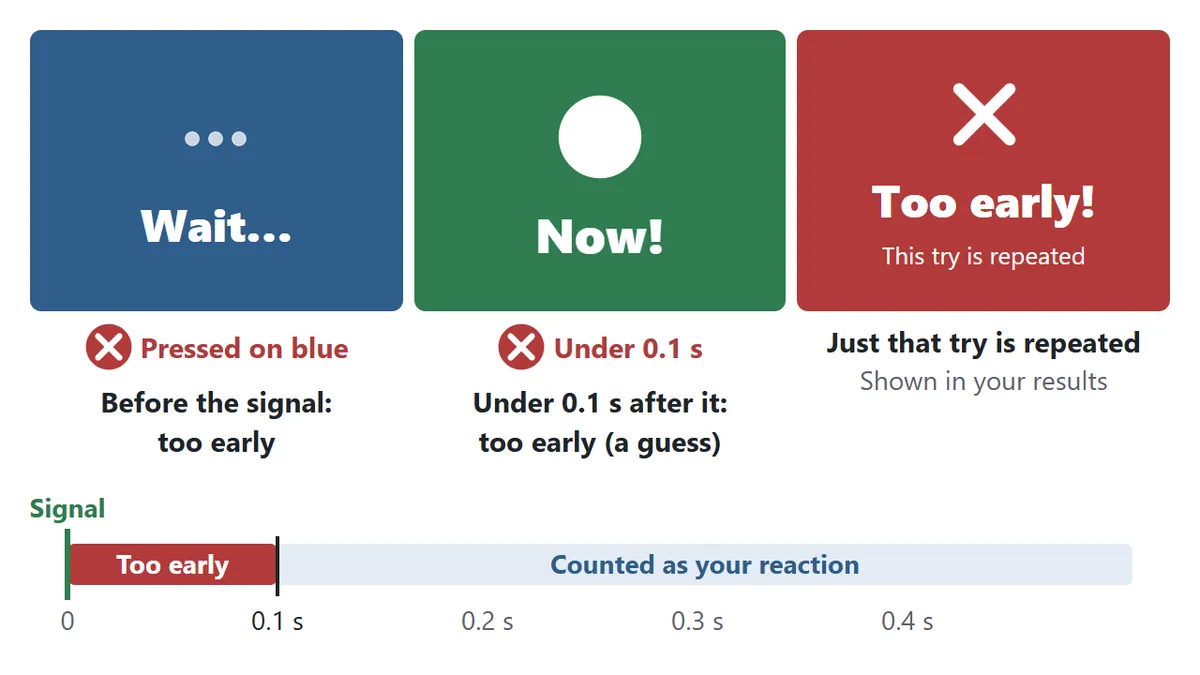
If you press while the box is still blue, that is a false start. A press that comes less than 0.1 seconds (100 ms) after the box turns green also counts as too early. Even the fastest people need roughly a tenth of a second to see a signal and move a finger, so anything quicker than that is a lucky guess rather than a real reaction. Sprint starts in athletics use the same 0.1-second line to spot false starts. An early press is not added to your score; that one try is simply run again, and the number of early presses is shown with your results.
Difficulty: with decoys
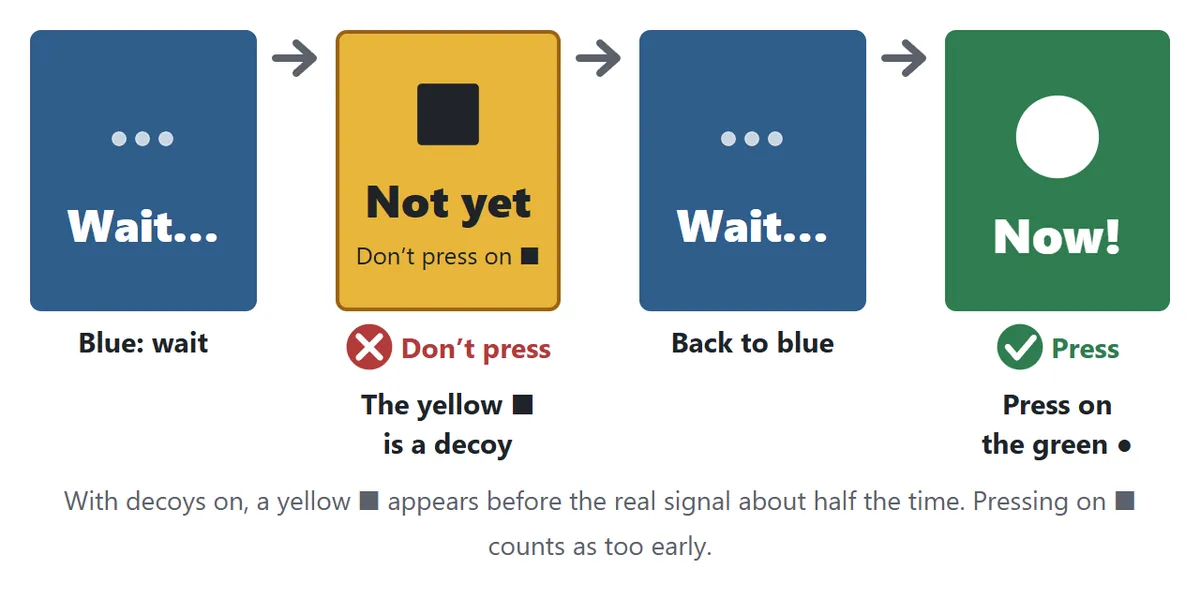
Choose “With decoys” and, in about half of the tries, a yellow ■ flashes up before the real signal. The ■ means “do not press”, and pressing on it counts as too early. Now you can’t just react to any change – you have to tell the go signal from the no-go signal first. That extra decision usually makes people a little slower, which is perfectly normal and a nice way to see how much a single “should I?” costs you.
Choice reaction test: match the color and shape
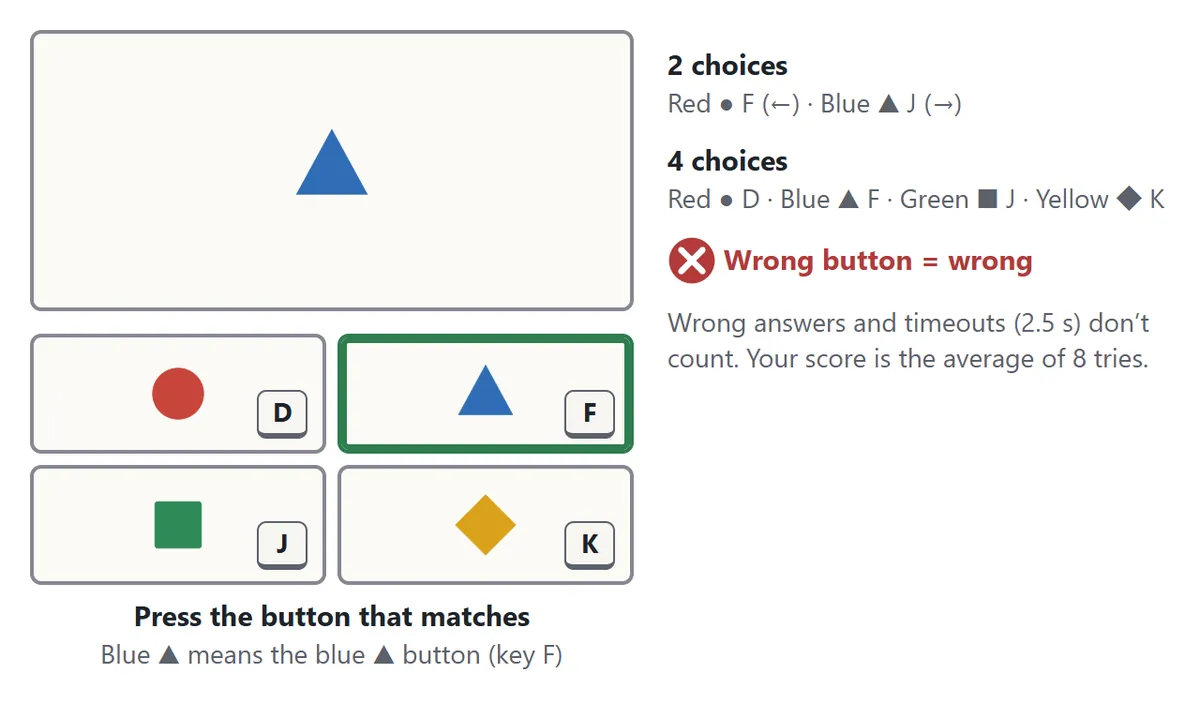
In this test the box shows a signal such as a red ● or a blue ▲, and you press the matching button underneath. Each signal has both its own color and its own shape, so you can play it even if some colors are hard for you to tell apart. On a keyboard, 2 choices use F and J (or the ← and → arrow keys) and 4 choices use D, F, J and K. Pressing the wrong button counts as a mistake, and if you don’t press within 2.5 seconds the try times out; neither is included in your average. Your result is the average of 8 tries.
Choosing takes time, so you will be slower here than in the simple test, and slower again with 4 choices than with 2. Comparing your own 2-choice and 4-choice times is one of the more interesting things you can do on this page.
Spot the Light: an aim and reaction test
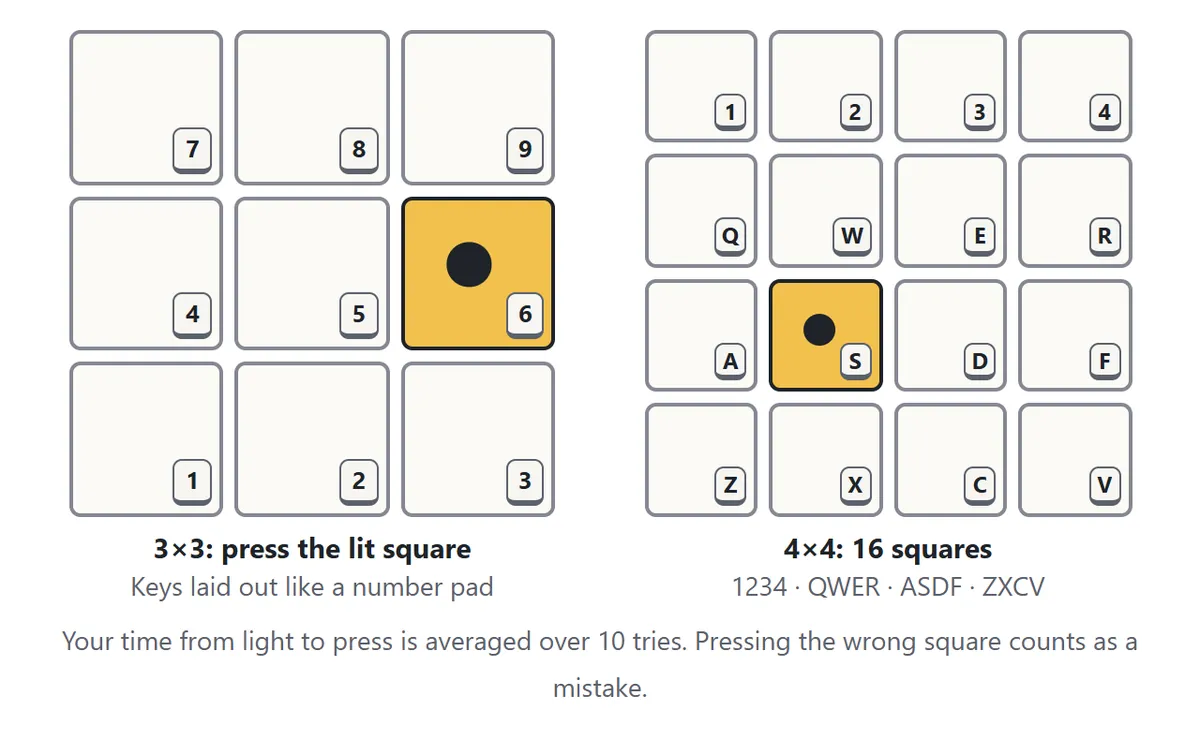
One of the squares lights up yellow, and you press it. Because you first have to find the square and then move your finger or mouse there, the times are longer than in the simple reaction test – this one is closer to aim training. Your result is the average of 10 tries. Hitting the wrong square is counted as a mistake, but the try carries on until you press the lit one. With a keyboard, the 3×3 grid uses the number-pad layout (7 is top left, 5 is the middle, 3 is bottom right) and the 4×4 grid maps onto the 16 keys 1234, QWER, ASDF and ZXCV on the left of the keyboard.
Click speed test (CPS) and space bar speed test

These two tests count how many times you can press in 5, 10 or 30 seconds. Click Speed counts mouse clicks or taps on the screen; Space Bar Speed counts only presses of the space bar. The clock starts the moment you make your first press, and that first press counts. A bar under the number shows how much time is left. When time is up you see your total, your clicks per second (often called CPS), your best single second and a chart of each second. Holding a key down so that it repeats does not count – every press has to be a real one.
How the time is measured, and device lag
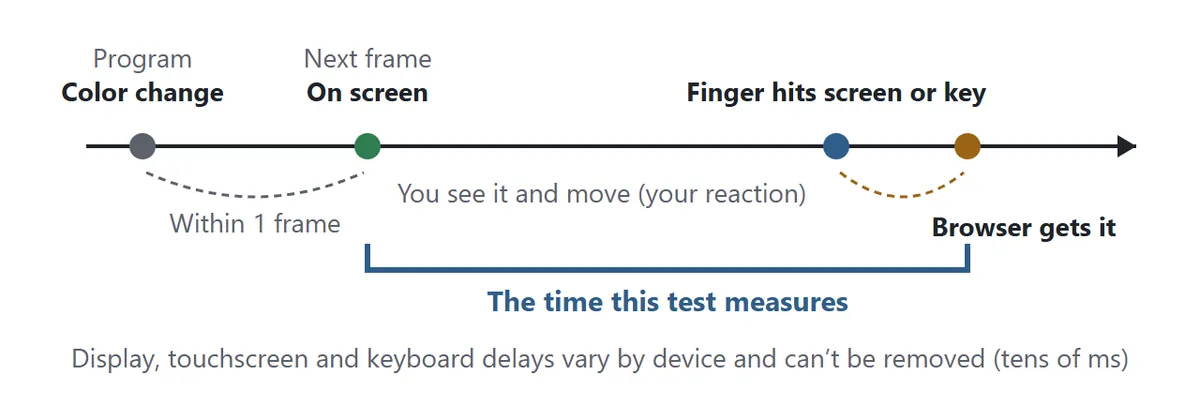
The timer runs from the moment the signal is actually drawn on the screen to the moment the browser receives your press. A screen redraws itself around 60 times a second, like a flip book, so the start time is taken from the frame in which the green box really appears rather than from the moment the program asked for the change. On phones and tablets the press is registered as soon as your finger touches the glass; lifting your finger is not part of the time.
Some delay can’t be removed. The display needs a moment to light up, and touchscreens, keyboards and mice each take a little time to report a press. Together that adds a few tens of milliseconds, and it varies from device to device. That is why online reaction time tests read a bit slower than lab experiments with special equipment. For a fair comparison, compare results measured on the same device. If you are competing with friends or family, take turns on the same phone or computer.
Which test should you try?
| Test | What it shows | Score |
|---|---|---|
| Reaction Time | Your basic speed from seeing a signal to pressing | Average of 5 (ms) |
| With decoys | Speed while deciding whether to press at all | Average of 5 (ms) |
| Choice Reaction | Speed and accuracy when picking a button | Average of 8 (ms) |
| Spot the Light | Finding a target and moving your hand to it | Average of 10 (ms) |
| Click / Space Bar Speed | How fast your fingers can keep going | Total presses and per second |
If this is your first visit, start with Reaction Time on Normal. Once you have a feel for it, try decoys or Choice Reaction to add a decision to the mix. For the speed tests, 10 seconds is the usual quick challenge, while 30 seconds also tests how long your fingers can keep up the pace.
What is a good reaction time?
For a flash of light, the reaction time of young adults is usually quoted at about 180 to 200 milliseconds (0.18–0.2 s). Those figures come from lab studies using dedicated equipment. An online test adds the device lag described above, so results of roughly 200–300 ms on a phone or computer are common and nothing to worry about. Under about 200 ms on a typical device is quick; consistently much lower than that is rare.
Reaction time is not a fixed number. It tends to get slower when you are sleepy, tired or distracted, and it often improves a little after a few warm-up rounds. Try measuring in the morning and again in the evening, or before and after a break, and see how much it changes. Rather than comparing yourself with strangers, it is more fun to watch your own numbers.
Alongside your average, the results show your fastest and slowest tries, how many times you pressed too early or chose wrong, your personal best, today’s best and how many times you have played. If you have played the same test before, you also see the difference, such as “12 ms faster than last time”. A small bar chart shows every try, with your fastest one in green.
Tips to improve your reaction time
1. Soften your gaze
Staring hard at one point in the box is less effective than looking at the whole box in a relaxed way – a change in color is easier to catch with a wide view. Blink right after you press, not while you are waiting, so you don’t miss the signal.
2. Keep your finger ready
Rest your finger on the mouse button, or hover it just above the screen. The farther your finger has to travel, the more time you lose. On a keyboard, rest your thumb lightly on the space bar.
3. Don’t press on a rhythm
The delay before the signal is random, so counting in your head leads to early presses. Think only “green means go” and don’t worry about how long you are waiting. It sounds simple, and it is the quickest way to a better score.
4. In the choice test, assign your fingers
For 4 choices, put your left middle finger on D, left index on F, right index on J and right middle finger on K. Learn which signal goes with which key before you start (red ● is D, blue ▲ is F, and so on) and you will hesitate less.
5. For click speed, stay loose
Small, quick movements beat big ones. Many people get more clicks per second by alternating two fingers, and that is allowed here. Tensing up makes you tire in the second half, so instead of going flat out from the first click, aim for a steady pace. A flat chart usually means a higher total.
6. Keep your setup the same
Same chair height, same device position, same finger. Keeping these the same makes your results more consistent, and a few rounds in a row usually bring your times down as you settle in.
Reaction time test FAQ
Why are my results different on my phone and my computer?
Screens, touch panels, mice and keyboards all pass on your press at slightly different speeds. The same person can see differences of tens of milliseconds between devices, so compare results from the same device.
Where are my results saved?
For each test and setting, your personal best, today’s best and your last 10 results are saved in this browser on this device. There is no login or sign-up. Clearing your browser’s history or site data also clears the results.
What happens if I stop halfway?
For Reaction Time, Choice Reaction and Spot the Light, you can pick up where you left off with “Continue” on the same day, and the tries you already finished are kept. The speed tests are short, so they simply start over. If you switch to another tab or click outside the game, the current try is paused and pressing again repeats it.
Can I do the space bar test on a phone?
The space bar test needs a physical keyboard. On a phone or tablet it works when a keyboard is connected. If you want to measure tapping speed on a touchscreen, choose Click Speed instead.
Is there sound?
Sound is off at first. Press “Sound: off” to turn it on and you will hear effects when you press and when your result appears. The signal itself is never a sound, so the test is the same with or without it.
Is the reaction test free?
Yes. Every test on this page is free to use as often as you like, in any modern browser, with nothing to install.
A little background on reaction time
The time between a signal and a movement is called reaction time, and psychologists have been measuring it since the 1800s. Two classic findings are built into this page. First, a “simple reaction” – one signal, one button – is faster than a “choice reaction”, where the signal tells you which of several buttons to press. Second, the more options there are, the longer the choice takes. The relationship is known as Hick’s law, and you can see it for yourself by comparing your 2-choice and 4-choice results.
Button-mashing has its own history. When home video game consoles took off in the 1980s, how fast you could press a button became a playground contest, and some players became famous for pressing a button more than 15 times a second. Today “how many clicks in 10 seconds?” is still one of the simplest ways to challenge a friend, and the click speed test here lets you check your CPS in the same spirit.